🌐 Read this article in English
How to solve complex graphics problems on Intel UHD Graphics 620 through systematic diagnosis and kernel parameters
Two months ago, my Slimbook Pro 2019 started showing symptoms that any technician would have diagnosed as «dead hardware»: the internal screen flickering constantly, an extremely slow system, graphical sessions that hung at boot. After five years of perfect operation, it seemed the moment had come to replace it.
However, persistence and a systematic diagnostic approach showed that even the most serious problems can have unexpected solutions. This is the full account of how I got a «written-off» laptop working perfectly again, even running Cinnamon with effects enabled.
Initial State: Symptoms of the Problem
Affected hardware:
- Slimbook Pro (2019) with Intel Core i7 Comet Lake-U
- Integrated Intel UHD Graphics 620
- Operating system: Debian GNU/Linux
- External monitor: IProda PD182Kpn (portable, ideal to complement the laptop)
Observed symptoms:
- Internal screen constantly flickering to black (main problem)
- Extremely slow system, even with an external monitor connected
- Graphical sessions that fail to boot or hang
- Graphical interface practically unusable
- Console mode working correctly
Time context: The laptop worked perfectly from 2019 until roughly July-August 2025, when the problems appeared suddenly without significant changes in hardware or software.
First Phase: Diagnosis and Ruling Out Obvious Causes
Analysis of System Logs
The first step was to examine the kernel logs to identify the root cause:
sudo dmesg | grep -i "i915"The logs revealed critical information about the Intel Graphics driver:
i915 0000:00:02.0: [drm] Found cometlake/ult (device ID 9b41)
WARNING: CPU: 0 PID: 176 at drivers/gpu/drm/i915/display/intel_pps.c:974 intel_pps_on_unlocked
Key finding: An error in the panel power sequence (Panel Power Sequence), indicating problems in the power management of the internal screen.
Checking the State of the Screens
cat /sys/class/drm/*/status
# Resultado:
# disconnected
# connected    # Pantalla interna (eDP-1) - causando problemas
# disconnected
# connected    # Monitor externo HDMI-2
Both screens were detected correctly by the kernel, but the internal one (eDP-1) was causing instability to the whole system.
Analysis of Graphics Acceleration
glxinfo | grep -E "(OpenGL renderer|direct rendering)"At this point, the system showed software rendering (llvmpipe), indicating that hardware acceleration had failed, which explained the extreme slowness of the system.
Second Phase: Systematic Solution Strategies
Attempt 1: i915 Driver Parameters
Based on research into known problems of the Intel UHD Graphics 620 on Comet Lake, I implemented the first corrective parameters in GRUB:
sudo nano /etc/default/grub

# Configuración inicial
GRUB_CMDLINE_LINUX_DEFAULT="i915.enable_psr=0 i915.enable_rc6=0 i915.enable_guc=2 i915.enable_dc=0"

sudo update-grub && sudo reboot
Explanation of the parameters:
enable_psr=0: Disables Panel Self Refresh (a common cause of flickering)enable_rc6=0: Avoids problematic low power statesenable_guc=2: Forces loading of the GuC/HuC firmwareenable_dc=0: Disables Display C-states, problematic on Comet Lake
Result: A marginal improvement, but the internal screen kept flickering.
Attempt 2: Driver Management and Xorg Configuration
I switched from the traditional Intel driver to the more modern modesetting driver:
sudo nano /etc/X11/xorg.conf.d/20-intel.conf

# Configuración
Section "Device"
    Identifier "Intel Graphics"
    Driver "modesetting"
    Option "AccelMethod" "glamor"
    Option "TearFree" "true"
EndSection
Result: No significant improvements in stability.
Attempt 3: Display Manager Management
The problems with SDDM led to configuring initialization scripts to automatically disable the internal screen:
sudo nano /usr/share/sddm/scripts/Xsetup

#!/bin/bash
sleep 3
xrandr --output eDP-1 --off --output HDMI-2 --auto --primary
Result: Temporary improvements that did not persist across reboots, and the internal screen kept flickering during boot.
Third Phase: The Breakthrough – PCIe Power Management and Disabling at Kernel Level
Identifying the Real Problem
A deeper analysis of the logs revealed critical errors that had gone unnoticed:
sudo tail -f /var/log/Xorg.0.log(WW) modeset(0): hotplug event: connector 106's link-state is BAD, tried resetting the current mode. You may be left with a black screen if this fails...This message appeared repeatedly every 1-2 seconds, indicating that the problem was not the graphics rendering but the stability of the display connections.
The Dual Solution: PCIe ASPM + Disabling the Internal Screen
The final solution required two complementary approaches:
- Disable PCIe power management, which caused instability
- Completely disable the internal screen at kernel level to stop it from causing conflicts
sudo nano /etc/default/grub

# Configuración que solucionó el problema
GRUB_CMDLINE_LINUX_DEFAULT="intel_iommu=igfx_off i915.enable_prs=0 i915.modeset=1 i915.enable_rc6=0 i915.enable_guc=2 i915.enable_dc=0 plymouth.enable=0 i915.enable_fbc=0 video=HDMI-2:1920x1080@60 video=eDP-1:d pcie_aspm=off"
Key parameters explained:
Power management and stability:
pcie_aspm=off: Critical – Disables PCIe Active State Power Management, resolves «link-state BAD» errorsintel_iommu=igfx_off: Avoids memory mapping conflicts with Intel graphicsplymouth.enable=0: Disables the problematic boot screen
i915 driver configuration:
i915.enable_prs=0: Disables Panel Self Refresh (flickering)i915.enable_dc=0: Disables Display C-states, problematic on Comet Lakei915.enable_rc6=0: Avoids problematic low power statesi915.enable_guc=2: Forces loading of the GuC/HuC firmware for better performancei915.modeset=1: Enables kernel mode settingi915.enable_fbc=0: Disables Frame Buffer Compression
Display configuration:
video=HDMI-2:1920x1080@60: Forces a specific resolution for the external monitorvideo=eDP-1:d: Completely disables the internal screen at kernel level (the:dparameter means «disabled»)
Why Was Disabling at Kernel Level Necessary?
The flickering internal screen was not only visually annoying, it also caused instability in the whole graphics subsystem. Attempts to disable it at Xorg level (xrandr --output eDP-1 --off) came too late: the kernel had already initialized both screens and the internal one had already started causing problems.
The video=eDP-1:d parameter instructs the kernel to completely ignore the internal screen during boot, preventing it from initializing and causing conflicts with the display driver.
Fourth Phase: Verifying the Success
Immediate Results
After rebooting with the final configuration:
# Verificación de aceleración hardware
glxinfo | grep "OpenGL renderer"
# Resultado: Mesa Intel(R) UHD Graphics (CML GT2)

# Test de rendimiento
vblank_mode=0 glxgears
# Resultado: ~7500 FPS

# Benchmark completo
glmark2 --fullscreen
# Puntuación: 590 (excelente para gráficos integrados)
Observed changes:
- Internal screen completely silent – no flickering since boot
- Clean boot – no «link-state BAD» errors in the logs
- Hardware acceleration restored – hardware rendering, not software
- Responsive system – normal performance restored
Final Results
Current State of the System
Graphics hardware:
- Hardware acceleration fully functional
- Intel UHD Graphics 620 operating at full performance
- External monitor IProda PD182Kpn working at a stable 1920×1080@60Hz
- Internal screen completely disabled – no flickering
System performance:
- Desktop environment: Cinnamon with effects enabled
- Graphics performance: 590 points in glmark2
- Stability: no «link-state BAD» errors in more than a week of intensive use
- Clean boot without interference from the problematic screen
Restored functionality:
- Stable graphical sessions
- Smooth video playback
- Trouble-free web browsing
- Ability to run modern desktop environments
Validation of the Solution
The system now exceeds the initial expectations:
# Test de texto 2D (relevante para trabajo de oficina)
x11perf -aa10text
# Resultado: 11M caracteres/segundo

# Test de renderizado 3D básico
glxgears (con vsync)
# Resultado: 60 FPS estables sin caídas

# Test sin vsync (rendimiento real)
vblank_mode=0 glxgears
# Resultado: 7500+ FPS
Technical Lessons Learned
1. Symptoms Can Be Misleading
The symptoms (screen flickering, slow system) pointed to a graphics hardware failure. The reality was a PCIe power management problem affecting the stability of the display connections, plus a defective internal screen interfering with the whole subsystem.
2. The Importance of Deep Diagnosis
The critical «connector link-state BAD» error was only visible in specific Xorg logs, not in the general kernel logs. A superficial diagnosis would have led to wrong conclusions.
3. Multiple Solutions vs a Single Solution
The problem required two complementary solutions:
- Stabilize the PCIe connections (
pcie_aspm=off) - Remove the source of conflicts (
video=eDP-1:d)
One alone was not enough.
4. The Level of Intervention Matters
Disabling the screen at application level (xrandr) came too late. It was necessary to intervene at kernel level to stop the problem from manifesting from the very start.
Replicable Diagnosis Methodology
For technicians facing similar problems:
Step 1: Information Gathering
# Información del hardware
lspci | grep VGA
dmidecode -s system-manufacturer
dmidecode -s bios-version

# Estado de displays
cat /sys/class/drm/*/status
xrandr (si es accesible)

# Logs críticos
dmesg | grep -i "drm\|i915"
journalctl -xe | grep -i "graphics\|display"
tail -f /var/log/Xorg.0.log | grep -i "hotplug\|link-state"
Step 2: Pattern Identification
- Constant screen flickering = a hardware problem specific to that screen
- Repetitive «link-state BAD» errors = a PCIe power management problem
- «llvmpipe» in the renderer = missing hardware acceleration (consequence)
- Errors when starting the graphical session = display driver instability
Step 3: Incremental Solutions
- Basic i915 driver parameters
- Optimized Xorg configuration
- PCIe power management (critical)
- Disabling problematic hardware at kernel level
- Hardware-specific optimization
Reflections on Technical Persistence
This case shows that the «dead hardware» diagnosis must be questioned systematically. The tendency to discard apparently failed hardware can lead to:
- Unnecessary economic loss: A €500 laptop saved vs €1000+ on a replacement
- Environmental impact: Avoiding the premature disposal of functional hardware
- Loss of data and configurations: Keeping the existing working environment
When to Persist vs When to Give Up
Indicators for continuing the diagnosis:
- Hardware with a history of stable operation
- Sudden failure with no apparent cause
- Partial functionality (console working)
- Specific errors in the logs (not random failures)
- A single problematic component that can be identified
Indicators for considering a replacement:
- Multiple components failing simultaneously
- Physical memory or CPU errors
- Intermittent failures with no reproducible pattern
- Repair cost > 60% of the value of the machine
Configuration of the External Monitor IProda PD182Kpn
A specific note on the portable monitor used: the IProda PD182Kpn proved to be an excellent companion for the repaired laptop:
Relevant specifications:
- 18.5″ Full HD (1920×1080) IPS panel
- Stable HDMI connection with the Intel UHD 620 driver
- Power via USB-C (compatible with the Slimbook’s ports)
- Slim profile, ideal for working on the move
Optimal configuration:
# Forzar resolución y frecuencia específicas
xrandr --output HDMI-2 --mode 1920x1080 --rate 60

# Configuración permanente en GRUB
video=HDMI-2:1920x1080@60
This monitor proved ideal for validating the solution, since it requires a completely stable HDMI signal – any instability in the graphics driver would show up immediately as flickering or disconnections.
Conclusion: The Value of Technical Persistence
What initially seemed an irreversible hardware failure was solved completely through:
- Systematic diagnosis instead of assumptions based on symptoms
- Specific research on the exact hardware (Comet Lake + UHD 620)
- Identification of specific problematic components (internal screen)
- Solutions at multiple levels (kernel + drivers + power management)
- Detailed documentation of each attempt to avoid repetition
The final result exceeds the initial expectations: a system that not only works, but performs better than expected for 2019 integrated graphics. The ability to run Cinnamon with effects enabled shows that the hardware had potential that was being blocked by suboptimal configurations and one specific defective component.
For any technician facing similar problems, the key message is: before declaring hardware dead, exhaust the configuration possibilities and isolate the problematic components. Modern systems have so many layers of abstraction (kernel, drivers, power management, display protocols) that apparently hardware problems often have software solutions, especially when the specific component causing conflicts can be identified and disabled.
Technical persistence, combined with a systematic methodology, can save hardware that would otherwise end up prematurely in the waste bin. In a world where technological sustainability matters more and more, these victories have both economic and environmental value.
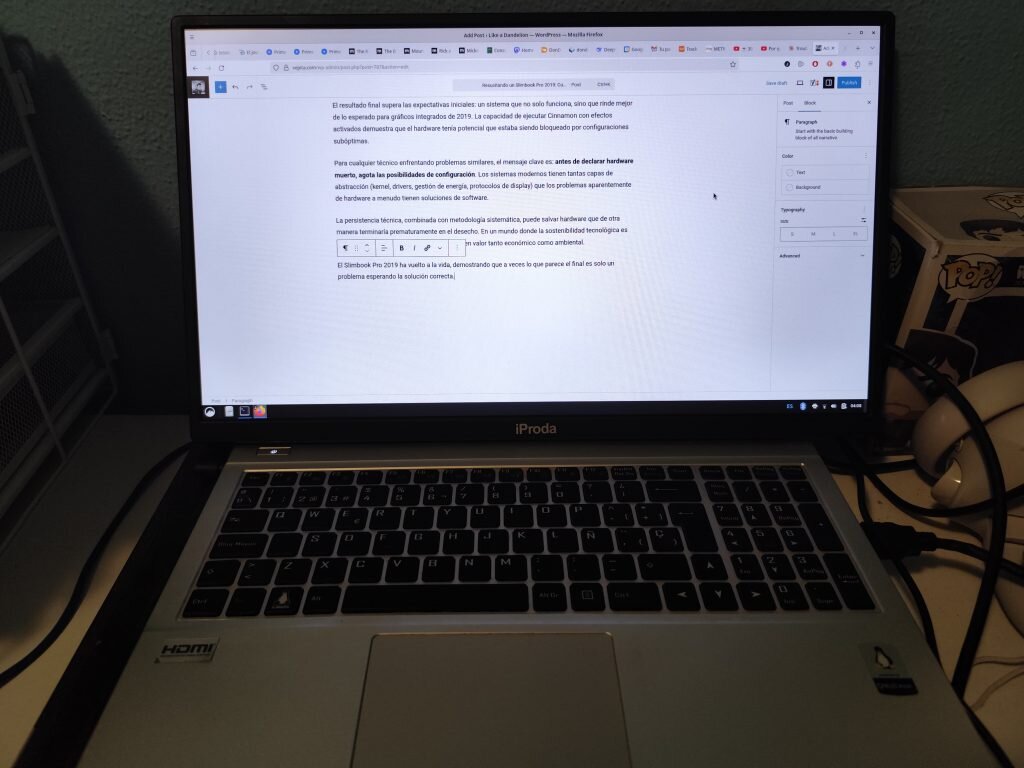
The Slimbook Pro 2019 has come back to life, showing that sometimes what looks like the end is only a problem waiting for the right solution – and the determination to find it.